
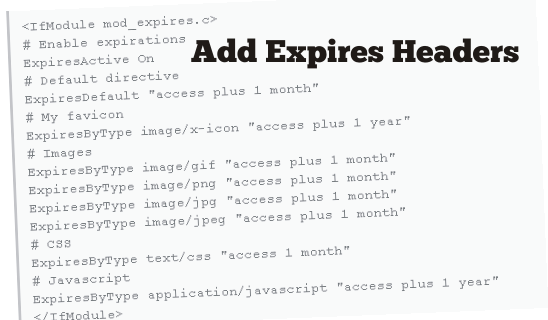
Page load times can be significantly improved by asking visitors to save and reuse the files included in your website.
- Reduces page load times for repeat visitors
- Particularly effective on websites where users regularly re-visit the same areas of the website
- Benefit-cost ratio: high
- Access needed
What is browser caching?
Every time a browser loads a webpage it has to download all the web files to properly display the page. This includes all the HTML, CSS, JavaScript and images.
Some pages might only consist of a few files and be small in size – maybe a couple of kilobytes. For others however there may be a lot of files, and these may add up to be several megabytes large. Twitter.com for example is 3 MB+.
The issue is two fold.
- These large files take longer to load and can be especially painful if you're on a slow internet connection (or a mobile device).
- Each file makes a separate request to the server. The more requests your server gets simultaneously the more work it needs to do, only further reducing your page speed.
Browser caching can help by storing some of these files locally in the user's browser. Their first visit to your site will take the same time to load, however when that user revisits your website, refreshes the page, or even moves to a different page of your site, they already have some of the files they need locally.
This means the amount of data the user's browser has to download is less, and fewer requests need to be made to your server. The result? Decreased page load times.
How does it work?
Browser caching works by marking certain pages, or parts of pages, as being needed to be updated at different intervals. Your logo on your website, for instance, is unlikely to change from day to day. By caching this logo image, we can tell the user's browser to only download this image once a week. Every visit that user makes within a week would not require another download of the logo image.
By the web server telling the browser to store these files and not download them when you come back saves your users time and your web server bandwidth.
Why is it important?
The main reason why browser caching is important is because it reduces the load on your web server, which ultimately reduces the load time for your users.
How to leverage browser caching
To enable browser caching you need to edit your HTTP headers to set expiry times for certain types of files.
Configuring Apache to serve the appropriate headers
Find your .htaccess file in the root of your domain. This file is a hidden file but should show up in FTP clients like FileZilla or CORE. You can edit the .htaccess file with notepad or any form of basic text editor.
In below given code, you will set our caching parameters to tell the browser what types of files to cache for an simple WordPress website.
<IfModule mod_deflate.c>
# Compress HTML, CSS, JavaScript, Text, XML and fonts
AddOutputFilterByType DEFLATE application/javascript
AddOutputFilterByType DEFLATE application/rss+xml
AddOutputFilterByType DEFLATE application/vnd.ms-fontobject
AddOutputFilterByType DEFLATE application/x-font
AddOutputFilterByType DEFLATE application/x-font-opentype
AddOutputFilterByType DEFLATE application/x-font-otf
AddOutputFilterByType DEFLATE application/x-font-truetype
AddOutputFilterByType DEFLATE application/x-font-ttf
AddOutputFilterByType DEFLATE application/x-javascript
AddOutputFilterByType DEFLATE application/xhtml+xml
AddOutputFilterByType DEFLATE application/xml
AddOutputFilterByType DEFLATE font/opentype
AddOutputFilterByType DEFLATE font/otf
AddOutputFilterByType DEFLATE font/ttf
AddOutputFilterByType DEFLATE image/svg+xml
AddOutputFilterByType DEFLATE image/x-icon
AddOutputFilterByType DEFLATE text/css
AddOutputFilterByType DEFLATE text/html
AddOutputFilterByType DEFLATE text/javascript
AddOutputFilterByType DEFLATE text/plain
AddOutputFilterByType DEFLATE text/xml
# Remove browser bugs (only needed for really old browsers)
BrowserMatch ^Mozilla/4 gzip-only-text/html
BrowserMatch ^Mozilla/4\.0[678] no-gzip
BrowserMatch \bMSIE !no-gzip !gzip-only-text/html
Header append Vary User-Agent
</IfModule>
Depending on your website's files you can set different expiry times. If certain types of files are updated more frequently, you would set an earlier expiry time on them (ie. css files)
When you are done save the file as is and not as a .txt file.
If you are using any form of CMS, cache extensions or plugins might be available.
Recommendations
- Be aggressive with your caching for all static resources
- Expiry at a minimum of one month (recommended: access plus 1 year)
- Don't set your caching more than a year in advance!
Be careful
You want to be careful when enabling browser caching as if you set the parameters too long on certain files, users might not be getting the fresh version of your website after updates.
This is particularly relevant if you are working with a designer to make changes to your website – they might have made the changes but you can't see them yet because the elements that have been changed are cached on your browser.