Installation in local machine
- Download and unzip the theme package.
- Go to xampp folder in
Local Discthen go tohtdocs->wordpress->wp-content->themesand paste the theme package.
- Go to Admin Panel ->
Appearance->Themes. Now Activate The By cliking theactivebutton THEMEName .
- The Updates will be on panel and you can update your theme when update will available of theme, If you customize your theme, Don't update your theme never.
Installation via FTP
- Extract the archive file on your machine that you've downloaded from asiathemes.
- Find the "THEMENAME" folder in the extracted contents.
- Open your favourite FTP application and connect to your server. Navigate to the "/wp-content/theme/" folder.
- Copy over the "THEMENAME" folder extracted from "THEMENAME-x.x.x.zip" file.
- Navigate to the
themepage on your WordPress admin area and click theActivatebutton below THEMENAME.
Description ( steps )
Upload Via FTP : Filezilla
- Please download Filezilla FTP client software ( using this link : https://filezilla-project.org/download.php?show_all=1,
Connecting to server
open filezilla software,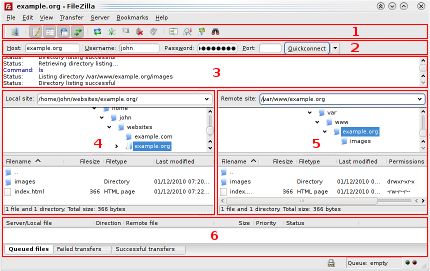 How to install WordPress theme
** In section 2 of above given image please fill.
- Enter your host name : your domain name / IP of your server
- Enter your user name : your cpanel user name.
- Enter your Password : Enter your cpanel password
- Enter your port number : 21
- Then plese click on quick connect.
- Your filezilla will be connect to your server ( NOTE : you may use Filezilla connect link for help in Connecting to a server using filezilla.
In above given image part 5 Please go to public_html/ . . . . . . . . /wp-content/theme/ ( . . . . . . may be your subdomain or any other folder path, It may be none if you are using main domain like ex. demosite.com)
Important : In section 5 image directory listing area ( ......./wp-content/theme/ ) , you should be in theme folder before uploading your theme.
Then please drag and drop your theme directory( ex. THEMENAME ) into that theme folder.
You can see your processing in section 6.
After complete your all file upload your section 6 area will be empty.
If any time it shows you file exits , them your can choose overwrite option.
Note : Now Enjoy the theme and create your own Business Site. On Activation we have tried to fill all the areas by default information. So that one can easily make out the area's user editable, dynamically .Use the specified Images(Dimension) for better look.